
How to record vertical and horizontal video from one iPhone take
A practical way to plan one iPhone recording for 16:9 landscape and 9:16 portrait delivery without repeating the moment.
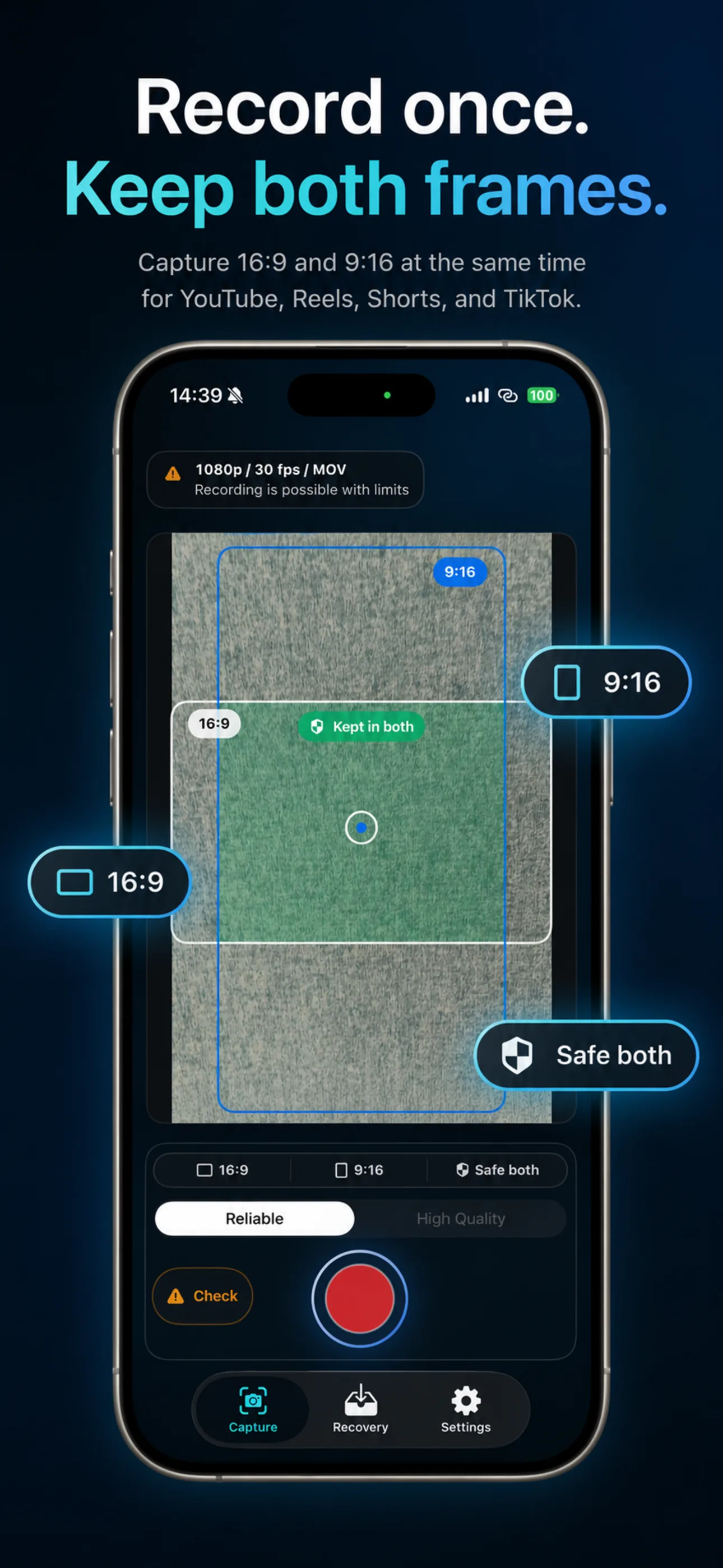
FrameTwin shows landscape and portrait guides around one capture session so the important subject can stay in both formats.
If one moment needs both a horizontal video and a vertical video, decide that before you press record. The usual workaround is to shoot twice or to crop one finished file later. Both approaches can waste time, change the performance, or leave one platform with a weak frame.
The better goal is one deliberate capture session with a plan for both 16:9 landscape and 9:16 portrait outputs.
Start with the shared safe area
Landscape and portrait do not show the same part of a scene. A 16:9 frame is wide; a 9:16 frame is tall and narrow. The overlap between them is the part of the image that matters most.
Before recording, keep the subject near the centre of that overlap. Leave enough room above the head, avoid placing important text at the extreme edges, and do not let a second speaker live only on the far left or right of the landscape frame. This gives each format room to breathe without making either one feel like an emergency crop.
For a talking-head video, this usually means a slightly wider composition than a vertical-only shoot. For a demonstration, keep the key action in the middle and show supporting context around it rather than relying on edge detail.
Decide what each format is for
It helps to name the job before the take starts:
- Use landscape for a full interview, a YouTube upload, a client archive, or a longer edit.
- Use portrait for Shorts, Reels, TikTok, or a social-first recap.
- Keep the same opening line or key action usable in both versions.
This does not mean both edits must be identical. A vertical edit can be shorter and faster. The point is to protect the original moment so you do not need to recreate it later just because the framing changed.
Check the phone before an important take
Dual-format capture asks more of an iPhone than a casual one-off clip. Check available storage, battery, device temperature, and the selected camera settings before recording. If the take is important, make a short test recording and inspect both outputs before the real moment begins.
FrameTwin is designed around this workflow: one iPhone recording session produces 16:9 and 9:16 outputs, while the app makes preflight, writing state, save status, and recovery information visible. Device and setting support still matter, so treat the readiness checks as a decision aid rather than a promise that every configuration is suitable.
Review both files after recording
Do not stop at a successful-looking timer. Confirm that both landscape and portrait outputs are present, that the important action stayed in frame, and that the save result is clear. If something needs attention, address it while the context is still fresh.
One take is valuable because the moment happened once. A reliable workflow protects both ways you will need to publish it.
For more details about the capture and local-first workflow, read the FrameTwin FAQ.